
Multi-DNC™ Software Installation
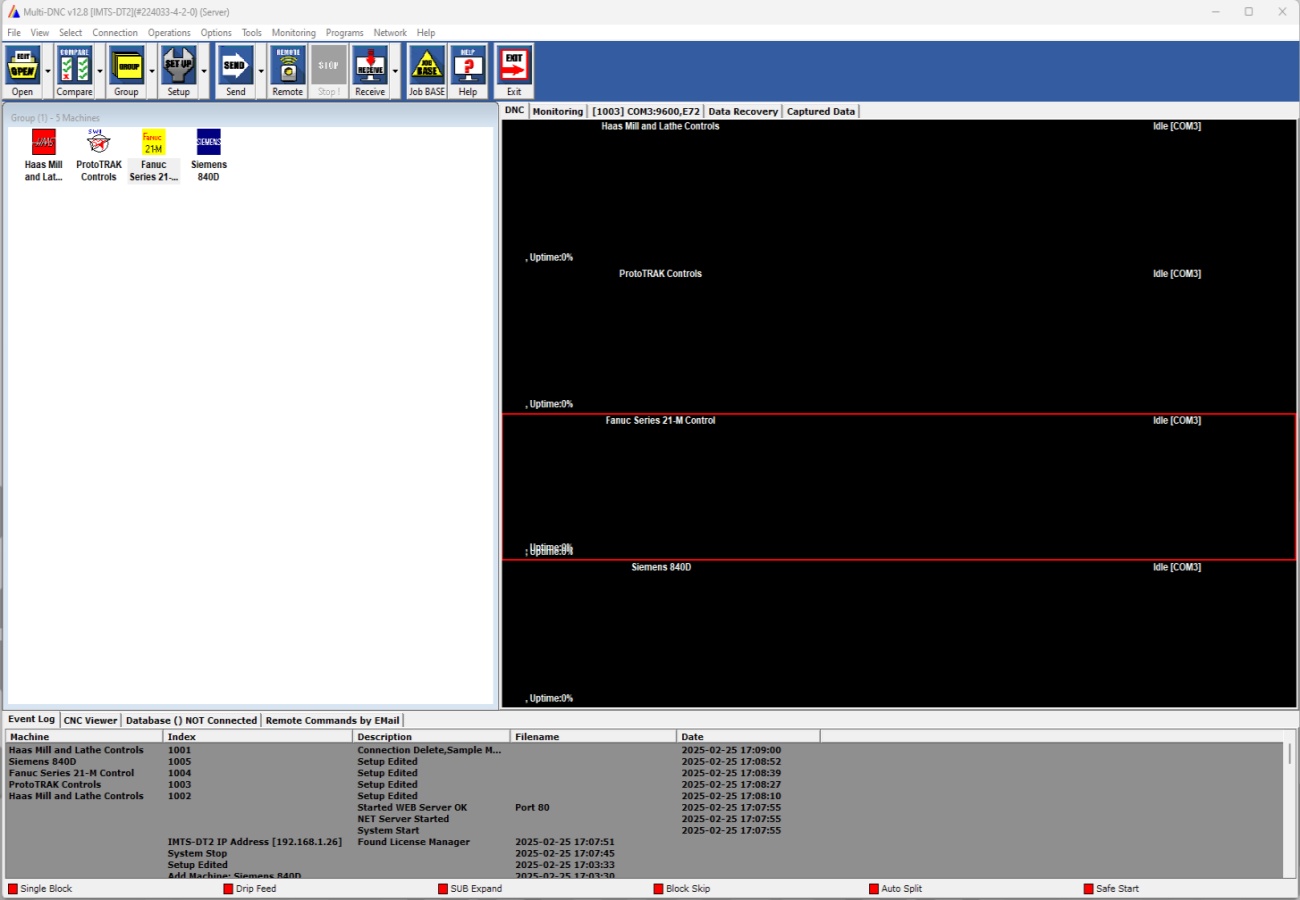
Download and Install Multi-DNC
Step through the following process to install Multi-DNC software:
- Logon to Windows at the PC or use RDP via mstsc.exe /admin
- Close all open applications and windows
- Open a browser and logon to the Multi-DNC Portal with your Multi-DNC User Name and Password
- Click the download link for Multi-DNC License Manager
- The download may take a minute to complete
- Within your browser's new download icon, click on MultiDNCLicenseManager_14-2-26.zip, select Show in Folder and a Windows Explorer window will appear
- Unzip MultiDNCLicenseManager_14-2-26.zip or click Extract All
- Shift+Right Click on MultiDNCLicenseManager.exe and select Run as administrator
- If a UAC prompt asks, Do you want to allow this app to make changes to your device? Select Yes
- Step through the Multi-DNC License Manager installation screens until it is finished
- Close all open windows
- Return to the Multi-DNC portal and click the download link for Multi-DNC
- Within your browser's new download icon, click on Multi-DNC_14-2-20.zip, select Show in Folder and a Windows Explorer window will appear
- Unzip Multi-DNC_14-2-20.zip or click Extract All
- Shift+Right Click on Setup.exe and select Run as administrator
- If a UAC prompt asks, Do you want to allow this app to make changes to your device? Select Yes
- Step through the Multi-DNC installation screens until prompted for name and company
- Type your name and company, the company must match what is specified in the Multi-DNC Portal
- When an install prompt for Lantronix Ports Device software is shown, click Don't Install
- NOTE: Only install the Lantronix Ports Device software if you have WiBox hardware installed on an older version of Windows
- Finishing the Multi-DNC installation will automatically reboot your PC
- Logon to Windows at the PC or use RDP via mstsc.exe /admin
- Shift+Right Click on the blue Multi-DNC desktop icon and select Run as administrator
- If a UAC prompt asks, Do you want to allow this app to make changes to your device? Select Yes
- Optionally specify Windows administrator credentials and click Ok
- The Multi-DNC License Manager will appear and automatically select the first Multi-DNC license
- Copy & paste the Machine Key, Company Name and License Key from the Multi-DNC Portal
- Click the Ok or Select button and the Multi-DNC splash screen will appear
- NOTE: If a Windows Firewall dialog appears, click Ok to continue
NOTE: If a previous version of Multi-DNC is already installed, make a backup of your data and Uninstall prior to stepping through the above process. Should install errors occur during the installation, close all open applications other than this browser window and repeat the installation. If technical support is needed contact us at techsupport@multi-dnc.com or call 951-549-0755.
More Self Help Articles
130+ Self Help Articles covering a wide range of technical details, references and processes are available on this web site to help support and troubleshoot Predator application issues.